How to Turn a PDF or Photo Menu Into a Digital QR Menu
You don't have to retype your menu from scratch. Upload the PDF or photo you already have, and Qrave's AI reads it, builds a structured menu, and lets you review everything before it goes live.
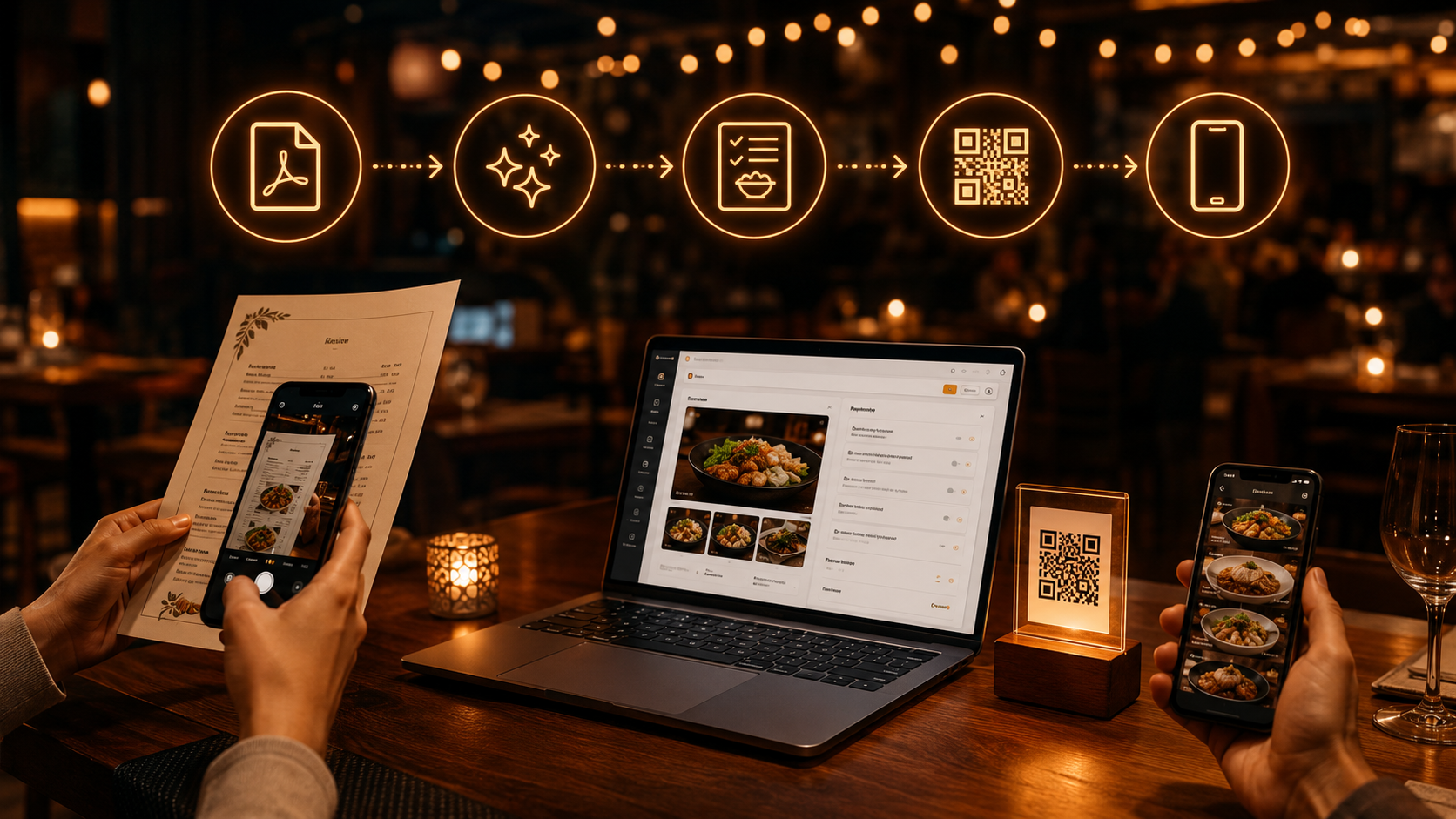
You Don't Have to Retype Your Menu From Scratch
Most restaurants that switch to a digital QR menu already have a menu — it's just sitting in the wrong format. Maybe it's a PDF from the last print run, a photo of the physical menu taken on a phone, or a scanned copy someone emailed you years ago. Retyping every item, price, and description by hand is the single biggest reason menu setup gets postponed.
Qrave skips that step. Upload the file you already have, and AI extraction reads it and builds a structured menu — categories, items, descriptions, and prices — for you to review and publish.
What File Types Actually Work
Today, Qrave's AI extraction supports:
- PDF — including multi-page menus, and scanned or image-only PDFs
- PNG and JPG photos — a clear photo of a printed or handwritten menu works
There's no minimum formatting requirement. You don't need clean columns or a specific layout — the AI is reading the menu the way a person would, not matching a template.
Step by Step: From File to Live Menu
- Open the menu you want to import in your Qrave dashboard and choose "Import from file."
- Select your PDF or photo and upload it.
- Qrave queues the extraction and starts processing in the background — you can keep working elsewhere in the dashboard while it runs.
- When it's done, you'll see a structured preview: categories, items, descriptions, and prices, exactly as the AI read them.
- Review the preview, make any corrections, and click "Confirm & Save" to publish it to your live menu.
Nothing goes live automatically. The extraction produces a draft you check before it becomes part of your real, customer-facing menu.
What Happens Behind the Scenes
For a straightforward PDF, extraction is usually quick. For messier files, Qrave runs through several fallback steps automatically before giving up:
- First, it tries to read the text directly out of the PDF.
- If the PDF is damaged or oddly encoded, it attempts to repair the file and try again.
- If there's still no usable text — common with scanned menus or PDFs that are really just images — it converts the pages to an image and reads it visually instead.
You don't see any of this happen. From your side, it's one upload and one result — a progress indicator that follows you around the dashboard until it's ready.
Always Review Before It Goes Live
AI extraction is a single pass, not a back-and-forth conversation, and it's reading your menu the same way a fast, careful person would — which means it's very good, but not infallible. A price that's smudged in a photo, a category header that looks like an item name, a dish description split awkwardly across a page break — these are the kinds of things worth a quick check.
That's why nothing publishes automatically. You always get a preview screen first, and you can edit anything — names, prices, descriptions, categories — before confirming. Think of the AI as doing the first 90% of the typing, not making the final call.
Tips for Tricky Menus
A few things that make extraction more accurate:
- Photos: shoot straight-on, in good light, without glare across the page. Avoid extreme angles or a hand covering part of the menu.
- Scanned PDFs: a 300 DPI scan reads far more reliably than a low-resolution phone scan of a scan.
- Handwritten menus: these work, but clear block handwriting extracts more reliably than fast cursive — expect to double-check prices especially.
- Multi-page menus: upload the full PDF rather than splitting it — the AI keeps categories straight across pages on its own.
After Import: Finish the Job
Getting your items into the system is the time-consuming part — everything after that is quick polish:
- Add photos to your highest-margin or signature items.
- Tag allergens so Qrave's AI menu assistant can answer guest questions accurately.
- Add translations if you serve international guests — Qrave's menu assistant can then talk to guests in their own language.
- Mark anything that's temporarily out of stock — changes go live on every guest's screen instantly, no reprinting.
How Long Does This Actually Take?
For a typical single-page or two-page menu, the whole process — upload, extraction, review, confirm — takes a few minutes, not hours. Complex, multi-category menus take a bit longer to review carefully, but you're checking an already-organized draft, not building one from a blank page.
Uploading a file that already exists and correcting a draft is dramatically faster than typing a full menu into any system by hand — digital or not.
Start a free 5-day trial — no credit card required.